Promotions
Create discounts to attract more clients and boost bookings. Glambook supports two types of promotions: Service Promotions and Facility Promotions.
Promotion Types
There are two types of promotions available under the Promotions menu in the sidebar:
| Type | Applies To | Use Case |
|---|---|---|
| Service Promotion | A specific service | Discount on a single service (e.g., 20% off Haircut) |
| Facility Promotion | The entire salon | Salon-wide discount (e.g., 10% off all bookings) |
Service Promotions
Offer discounts on individual services.
Steps to Create a Service Promotion
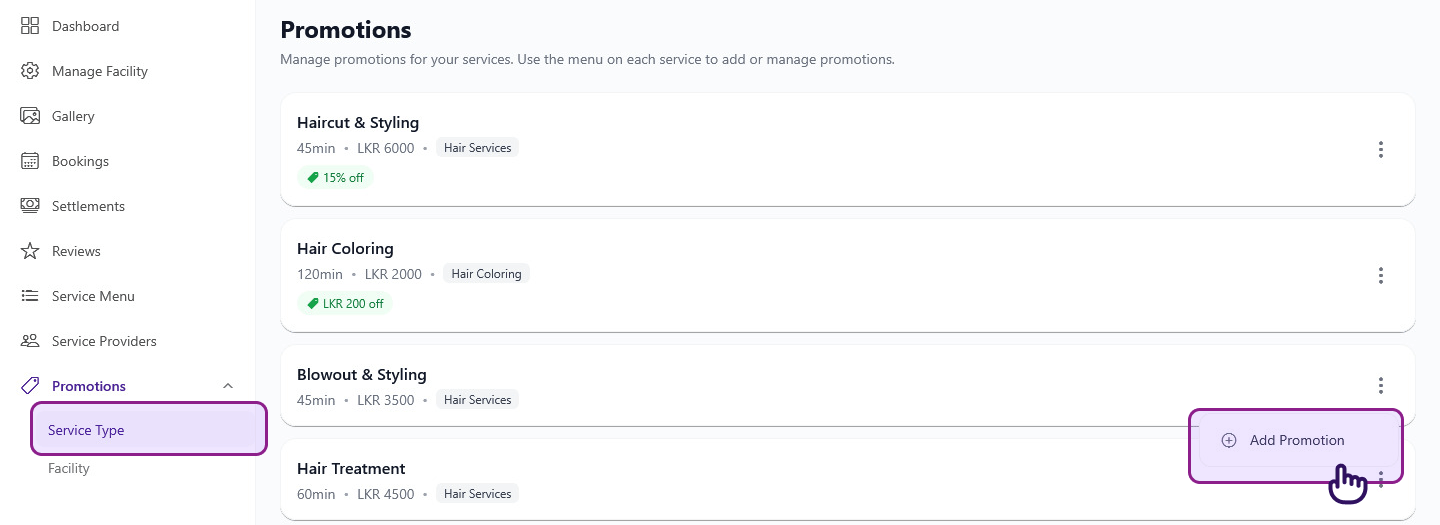
- Click Promotions in the sidebar, then select Service Promotions
- You'll see a list of your services — services with active promotions are highlighted
- Click the menu on a service card
- Select Add Promotion
- Fill in the promotion details:
- Discount Type — choose Percentage (%) (e.g., 20% off) or Fixed Amount (LKR) (e.g., LKR 500 off)
- Discount Value — the discount amount or percentage
- Valid From — start date of the promotion
- Valid To — end date of the promotion
- Max Usage Count — maximum number of times this promotion can be used (optional)
- Min Booking (LKR) — minimum booking value to qualify (optional)
- Max Booking (LKR) — maximum booking value eligible (optional)
- Description — a short description of the promotion (optional)
- Click Create
Service Promotion Fields
| Field | Description | Required |
|---|---|---|
| Discount Type | Percentage (%) or Fixed Amount (LKR) | Yes |
| Discount Value | The discount (e.g., 15 for 15%, or 5000 for LKR 5,000) | Yes |
| Valid From | Promotion start date | Yes |
| Valid To | Promotion end date (must be after start date) | Yes |
| Max Usage Count | Limit how many times it can be used | No |
| Min Booking (LKR) | Minimum booking value to qualify | No |
| Max Booking (LKR) | Maximum eligible booking value | No |
| Description | Short description of the promotion | No |
Facility Promotions
Offer salon-wide discounts that apply to all bookings at your facility.
Steps to Create a Facility Promotion
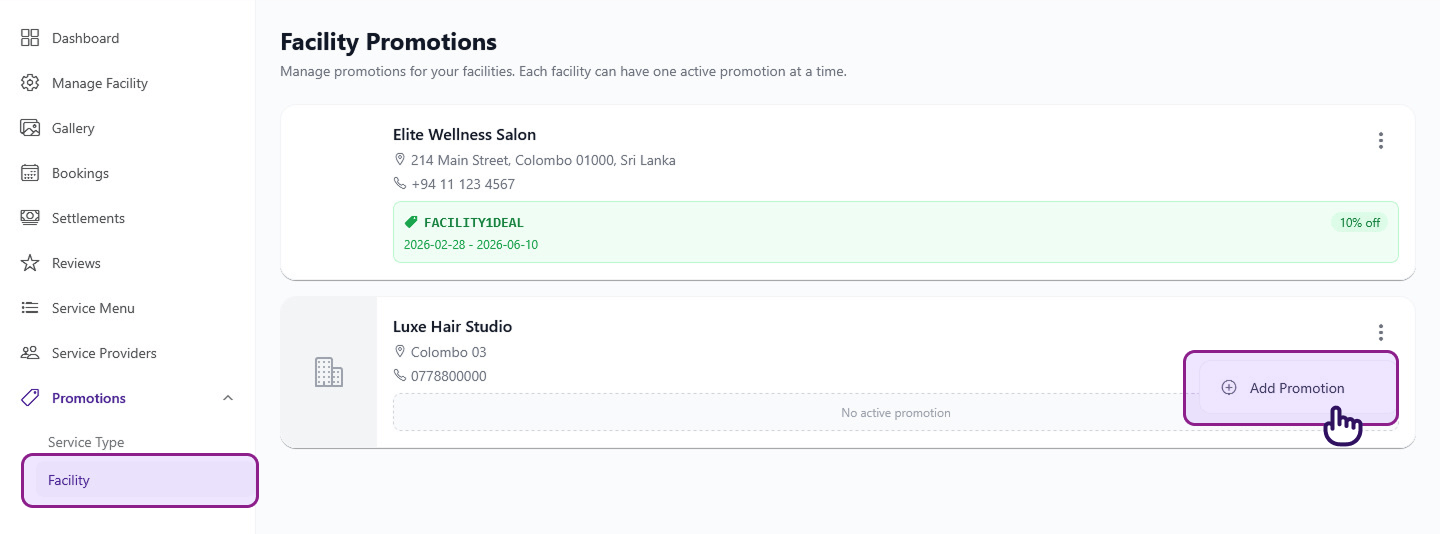
- Click Promotions in the sidebar, then select Facility Promotions
- Click Add Promotion
- Fill in the promotion details:
- Description — a short description (e.g., "Grand Opening 10% Off")
- Discount Type — choose Percentage or Fixed Amount
- Discount Value — the discount amount or percentage
- Valid From — start date
- Valid To — end date
- Max Usage Count — optional usage limit
- Min Booking Amount — optional minimum booking value
- Max Booking Amount — optional maximum booking value
- Click Save
Managing Promotions
Editing a Promotion
- Click the menu on a service or facility promotion
- Select Edit Promotion
- Update the fields and save
Viewing Promotion Details
- Click the menu on a promotion
- Select View Promotion to see full details including usage count
Removing a Promotion
- Click the menu on an active promotion
- Select Remove Promotion
- The promotion will be deactivated — clients will no longer see the discount
Tips
- Active promotions are shown to clients with the discounted price displayed alongside the original price
- Expired promotions (past the "Valid To" date) are automatically deactivated
- Usage tracking — you can see how many times a promotion has been used in the promotion details
- One active promotion per service — each service can have one active promotion at a time
tip
Running a promotion on your most popular services during slow periods is a great way to fill empty slots.