Adding Services
Add the services your salon offers so clients can browse and book them.
Steps
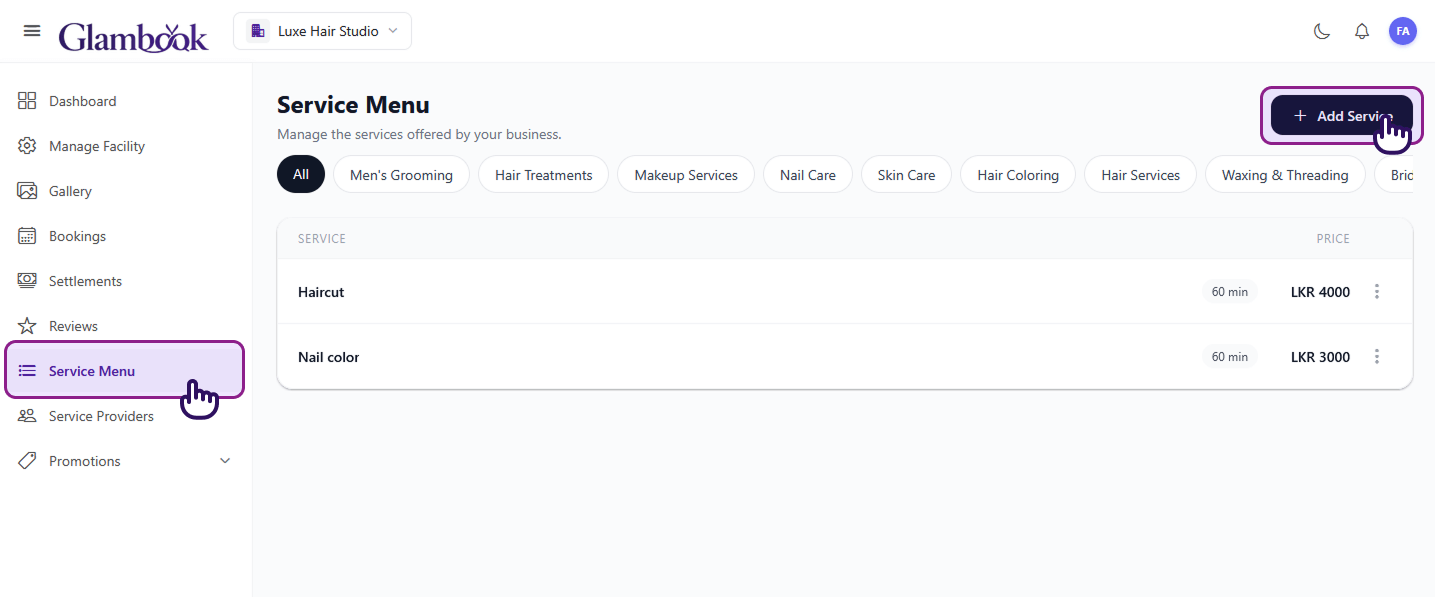
- Click Service Menu in the sidebar
- Click + Add Service (top-right)
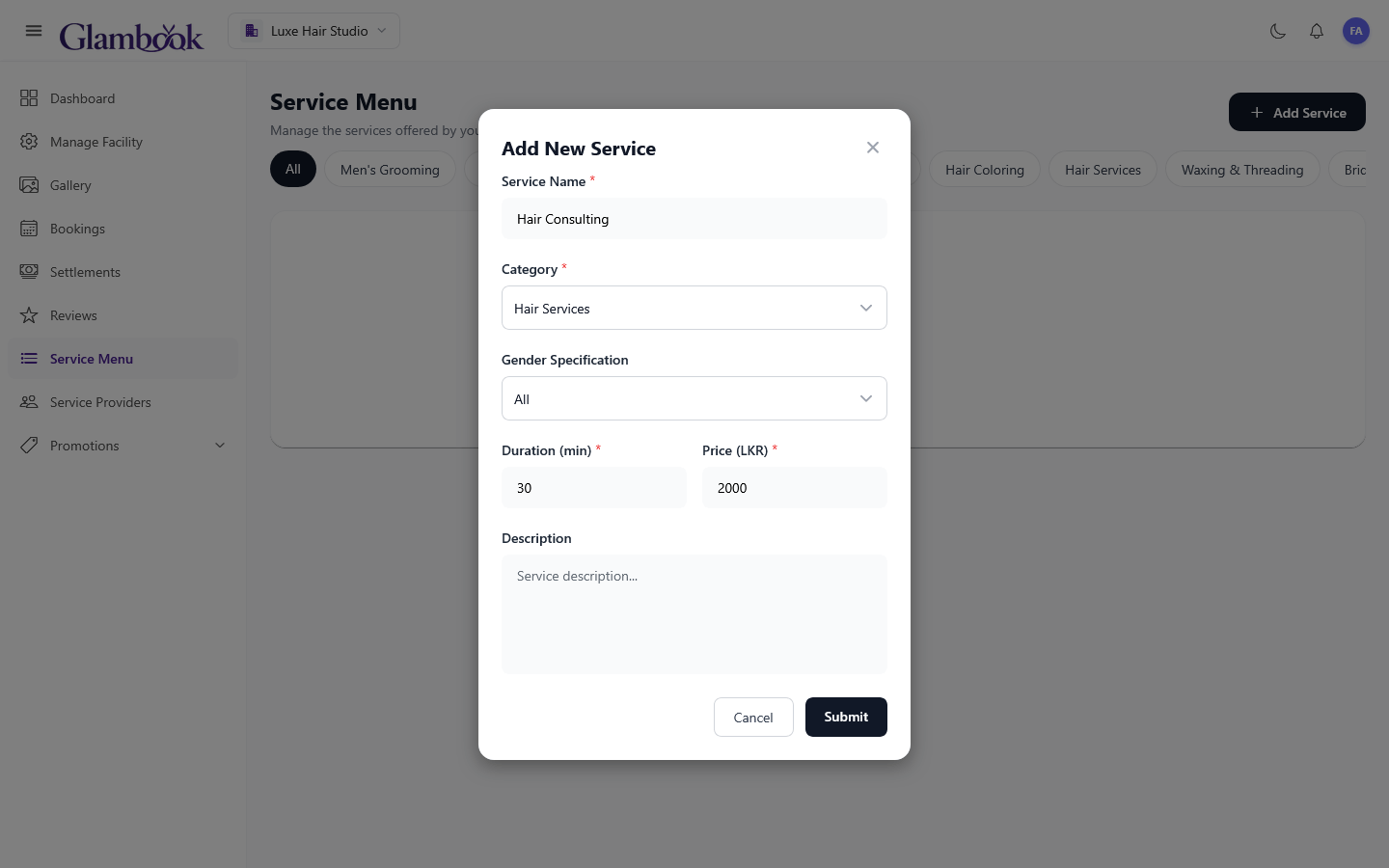
- Fill in the service details in the Add New Service modal:
- Service Name — the service name (e.g., "Hair Consulting", "Hair Coloring")
- Category — select from the dropdown (e.g., Hair Services, Men's Grooming)
- Gender Specification — choose All, Male, or Female
- Duration (min) — how long the service takes in minutes (e.g., 30, 60, 90)
- Price (LKR) — base price in LKR
- Description — optional description of the service
- Click Submit
Field Reference
| Field | Description | Required |
|---|---|---|
| Service Name | Display name of the service | Yes |
| Category | Service category for organization and filtering | Yes |
| Gender Specification | Target gender (All, Male, or Female) | No |
| Duration (min) | Time in minutes the service takes | Yes |
| Price (LKR) | Base price for the service | Yes |
| Description | Details about the service | No |
Service Categories
Services are organized by categories based on your salon type:
Salon categories may include:
- Hair
- Skin
- Nails
- Makeup
- And more
Spa categories may include:
- Massage
- Body Treatments
- Facials
- And more
note
Categories are pre-defined based on whether your facility is set up as a Salon or Spa.
How Pricing Works
- The base price you set is the default price for this service
- When you assign a service to a provider, you can optionally set a custom price for that specific provider (e.g., a senior stylist may charge more)
- If you create a promotion, the discounted price will be shown to clients
What's Next?
After adding your services:
- Manage your services — edit, delete, or filter by category
- Add staff — assign services to your providers
- Create promotions — offer discounts on specific services