Managing Shifts
Set your providers' working schedules so clients can book during available times.
Accessing Shift Management
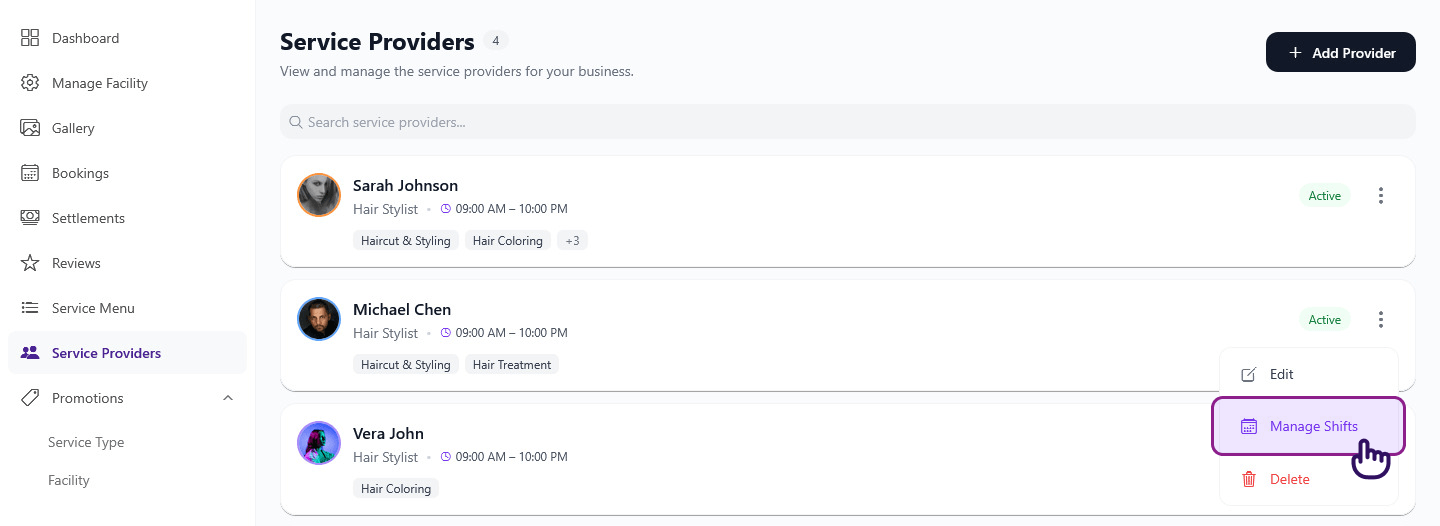
- Click Service Providers in the sidebar
- Click the menu on a provider card
- Select Manage Shifts
- You'll see a weekly grid of the provider's schedule
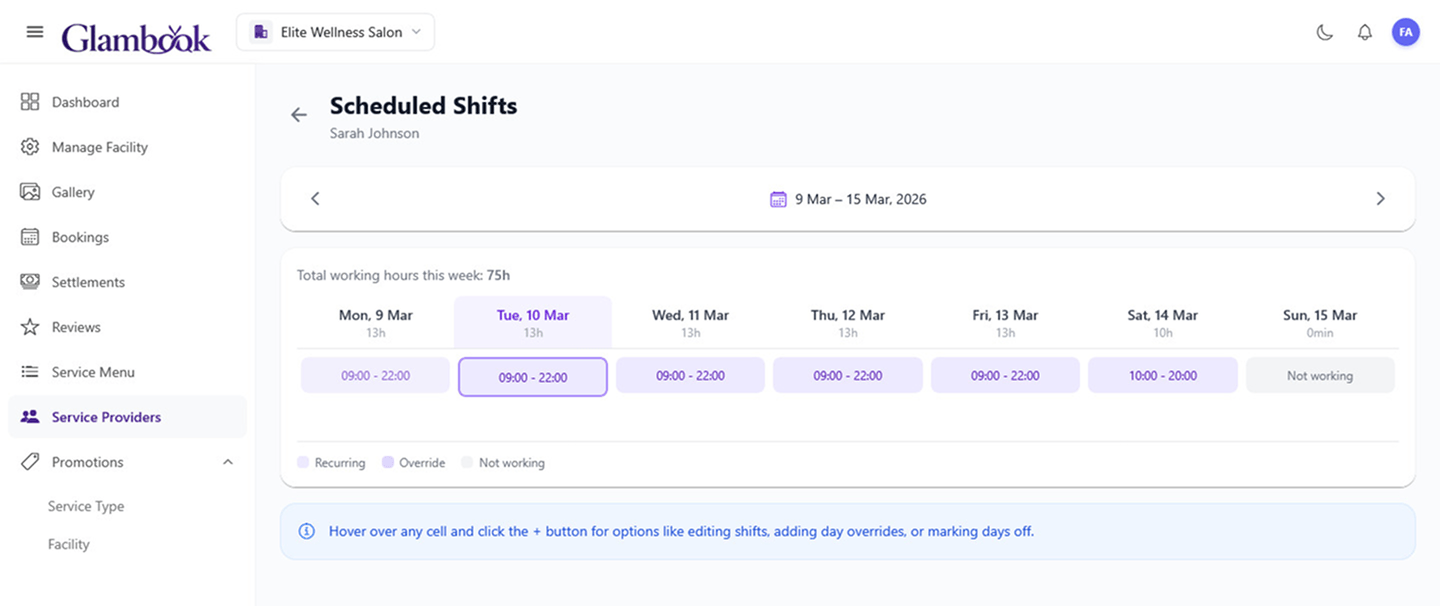
The weekly grid shows Monday through Sunday, with each cell displaying the shift times, break times, and working hours. Use the navigation arrows or calendar picker to switch between weeks.
Grid Legend
| Color | Meaning |
|---|---|
| Light violet | Recurring shift |
| Darker violet | Single-day override |
| Gray | Not working (day off) |
Shift Types
There are two types of shifts:
- Recurring shifts — the provider's regular weekly schedule (one shift per day of the week, repeats every week)
- Single-day overrides — one-time changes for a specific date (different hours or a day off)
Single-day overrides take precedence over recurring shifts for that date.
Adding a Single-Day Override
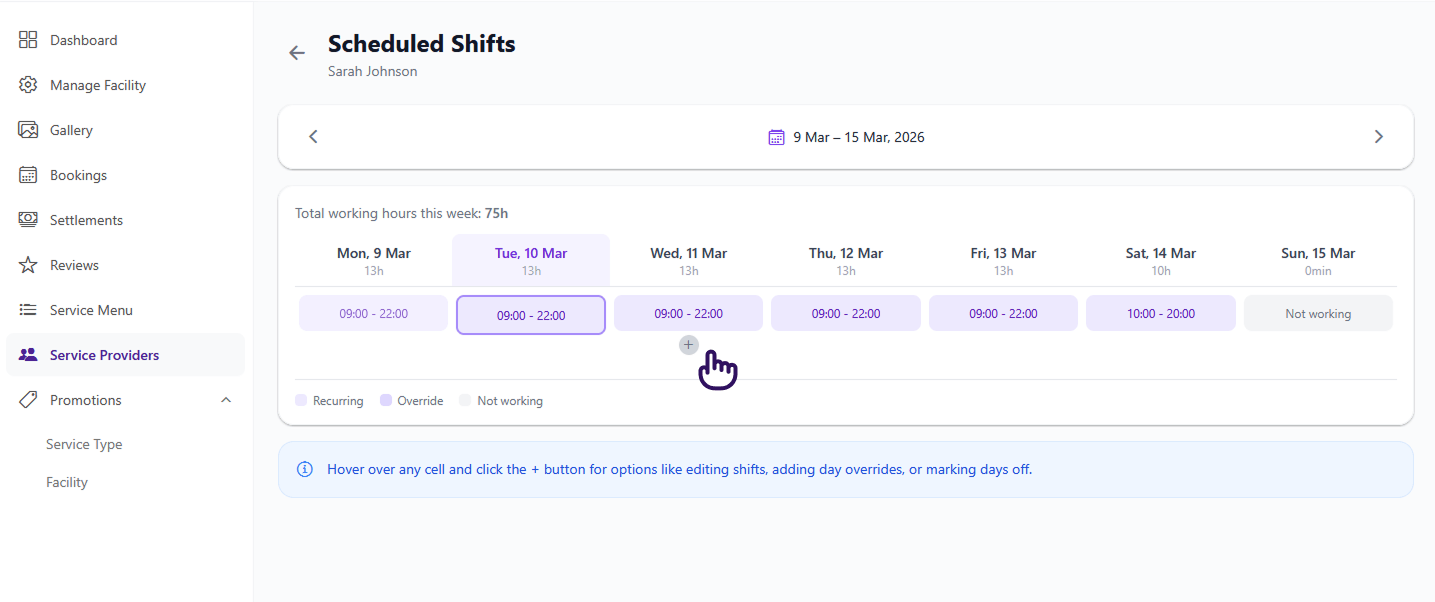
- Hover over a day cell in the weekly grid and click the + button
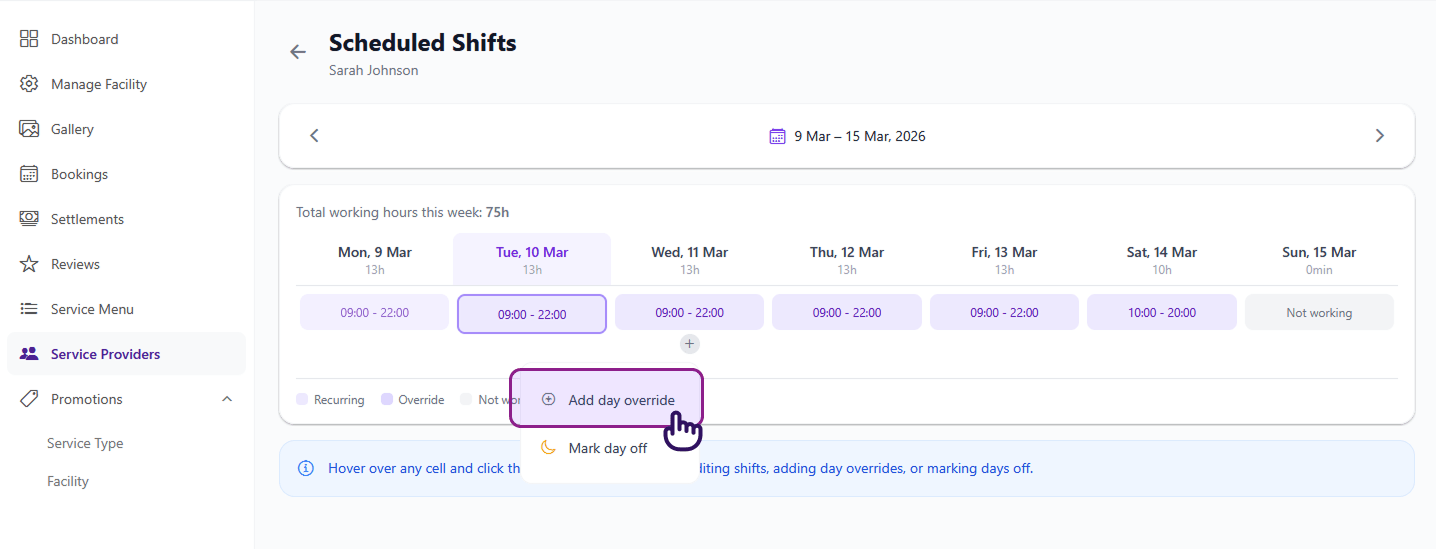
- Select Add day override
-
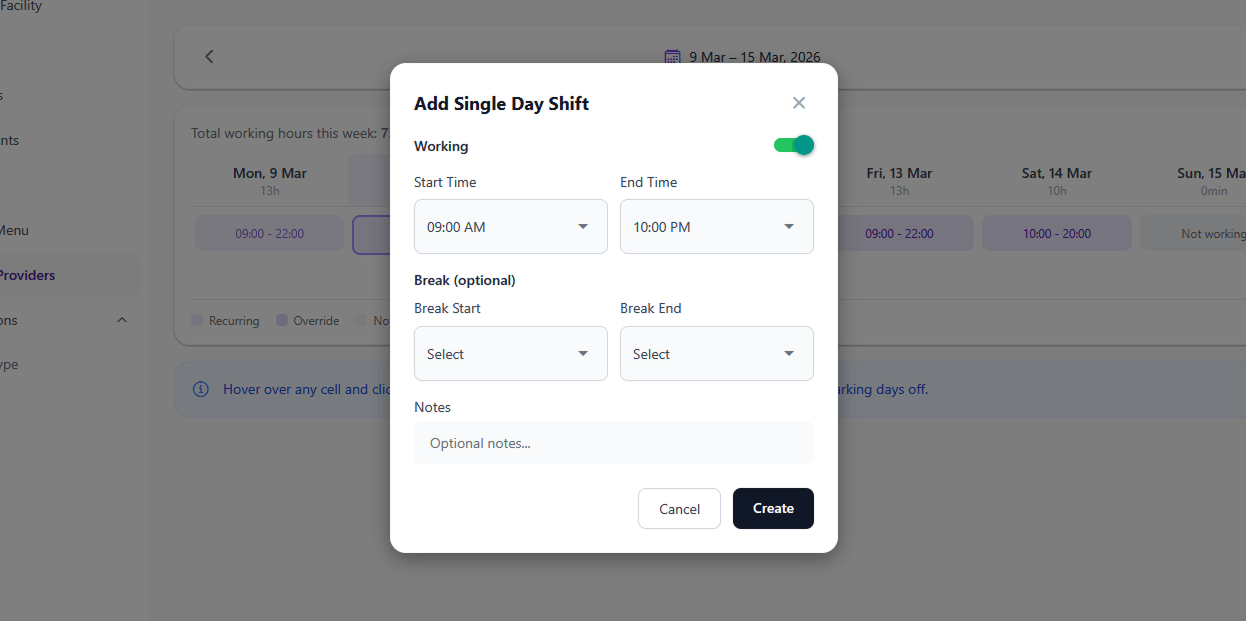
Fill in the shift details:
- Working — toggle on/off (off marks the day as not working)
- Start Time — shift start (must be within salon operating hours)
- End Time — shift end (must be within salon operating hours)
- Break Start Time — optional break start
- Break End Time — optional break end
- Notes — optional notes (e.g., "Covering for another provider")
-
Click Save
Marking a Day Off
- Hover over a day cell in the weekly grid and click the + button
- Select Mark day off
- The provider will not be available for bookings on that date
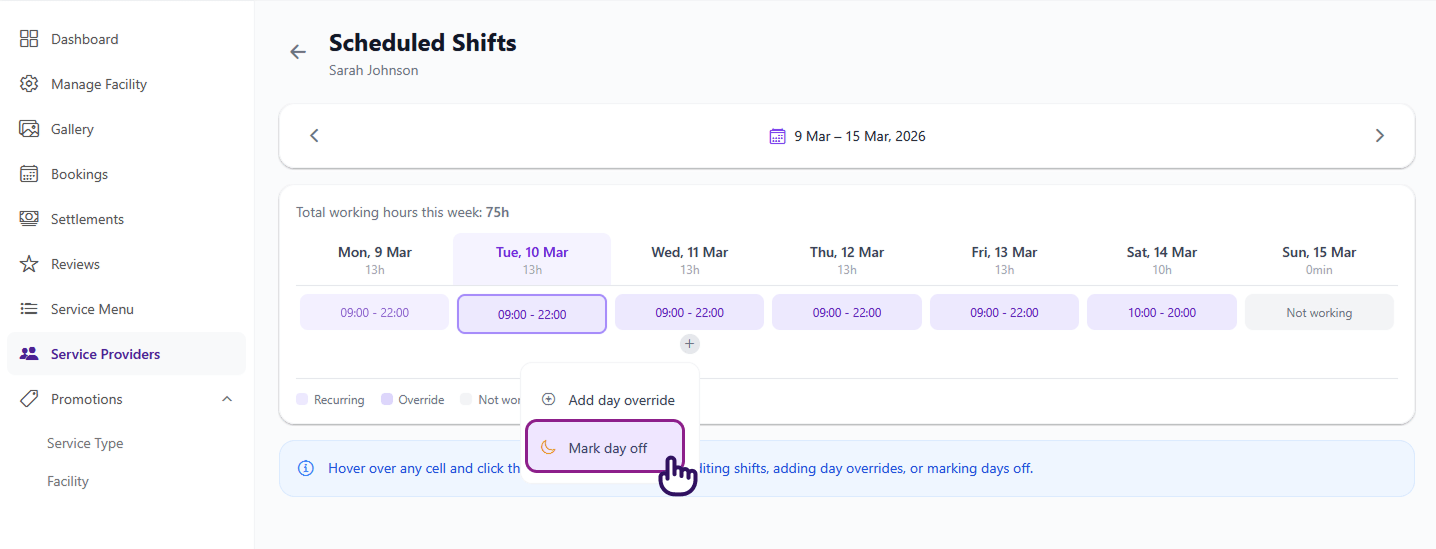
Marking a day off overrides any recurring shift for that date. Existing bookings on that day are not automatically cancelled.
Editing a Shift
Editing a Single-Day Override
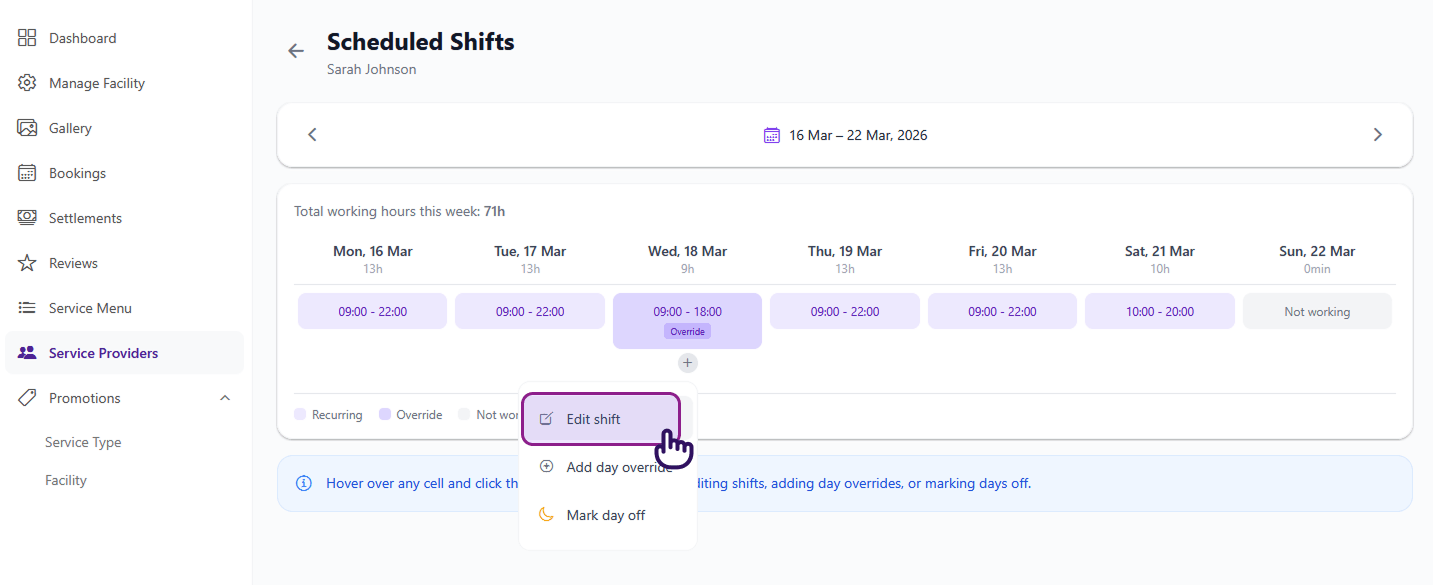
If the day already has an override, you can edit it directly:
- Hover over the day cell and click the + button
- Select Edit shift
- Update the times, break, or notes
- Click Save
Editing a Recurring Shift Day
You cannot edit a recurring shift directly. To change a specific day's schedule, create a single-day override:
- Hover over the day cell and click the + button
- Select Add day override
- Set the new times, break, or notes for that date
- Click Save
The override will replace the recurring shift for that date only. All other weeks remain unchanged.
Deleting a Shift
- Open the edit modal for a single-day override
- Click Delete Override
- Confirm the deletion — the day will revert to the recurring schedule
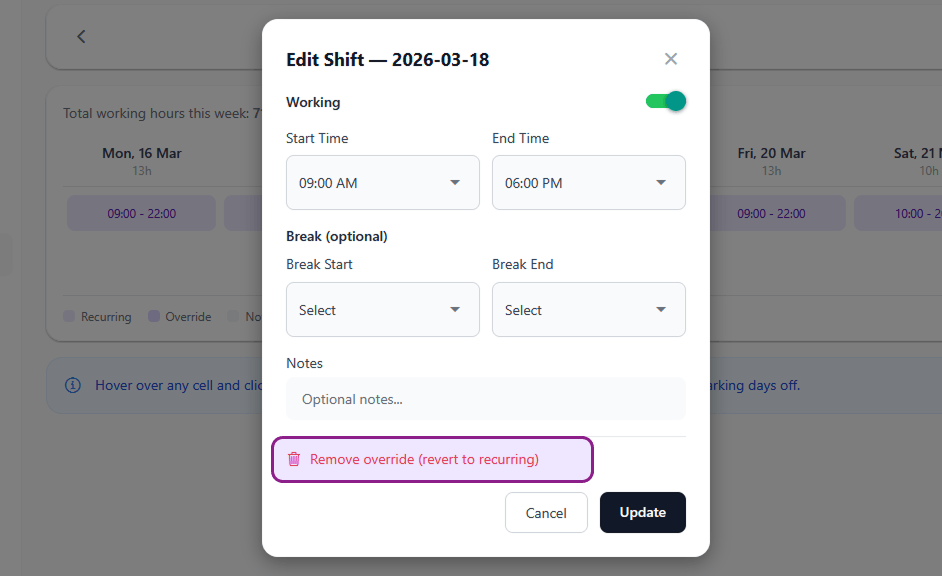
You can only delete single-day overrides. Recurring shifts are managed separately.
How Shifts Affect Bookings
- Clients can only book during shift hours — if a provider works 9 AM – 6 PM, clients won't see slots outside that range
- Shifts must fall within your salon's operating hours — a provider can't be scheduled when the salon is closed
- Multiple providers can have different shifts — each provider has their own schedule
- Days off block all bookings for that provider on the specified date
Tips
- Set recurring shifts first for your standard weekly schedule, then use single-day shifts for exceptions
- Plan ahead — set shifts at least a week in advance so clients can book early
- Communicate with your team — let providers know their schedule has been updated