Managing Staff
Edit provider details, update service assignments, and manage provider status.
Viewing Your Staff
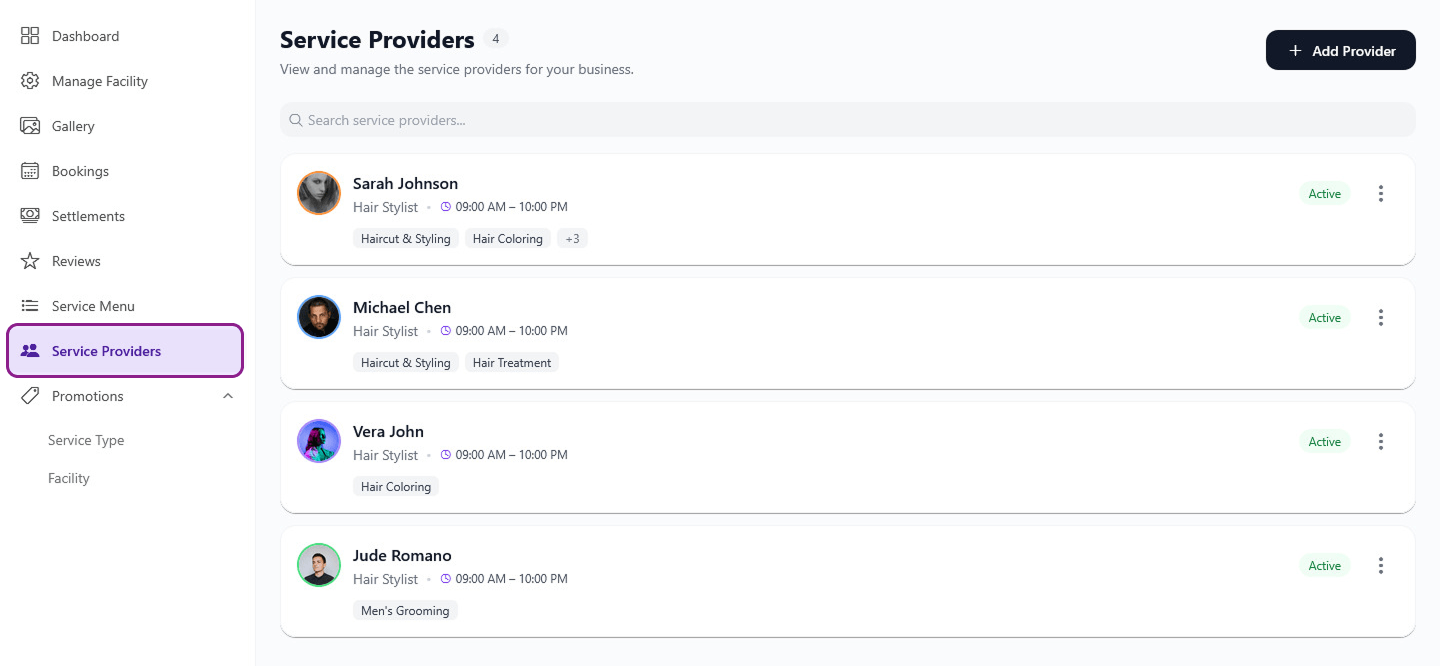
- Go to the Service Providers tab
- All your providers are listed with their name, profession, and status (active/inactive)
- Use the search bar to filter providers by name
- The provider count badge shows your total number of providers
Editing a Provider
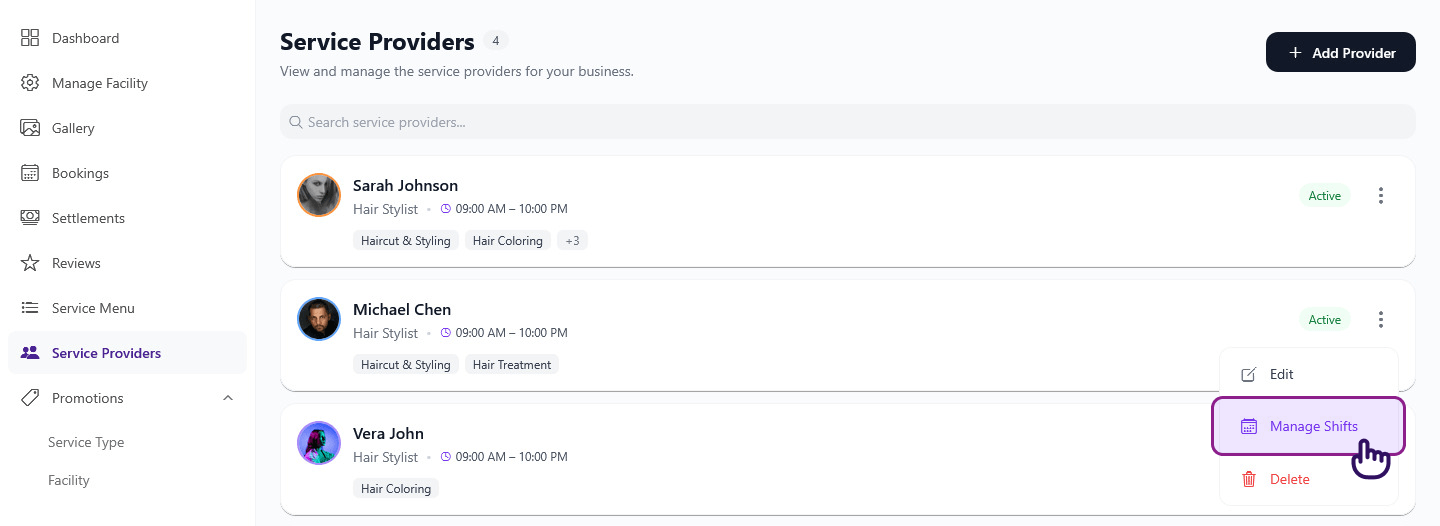
- Tap the menu (three dots) on the provider card
- Select Edit
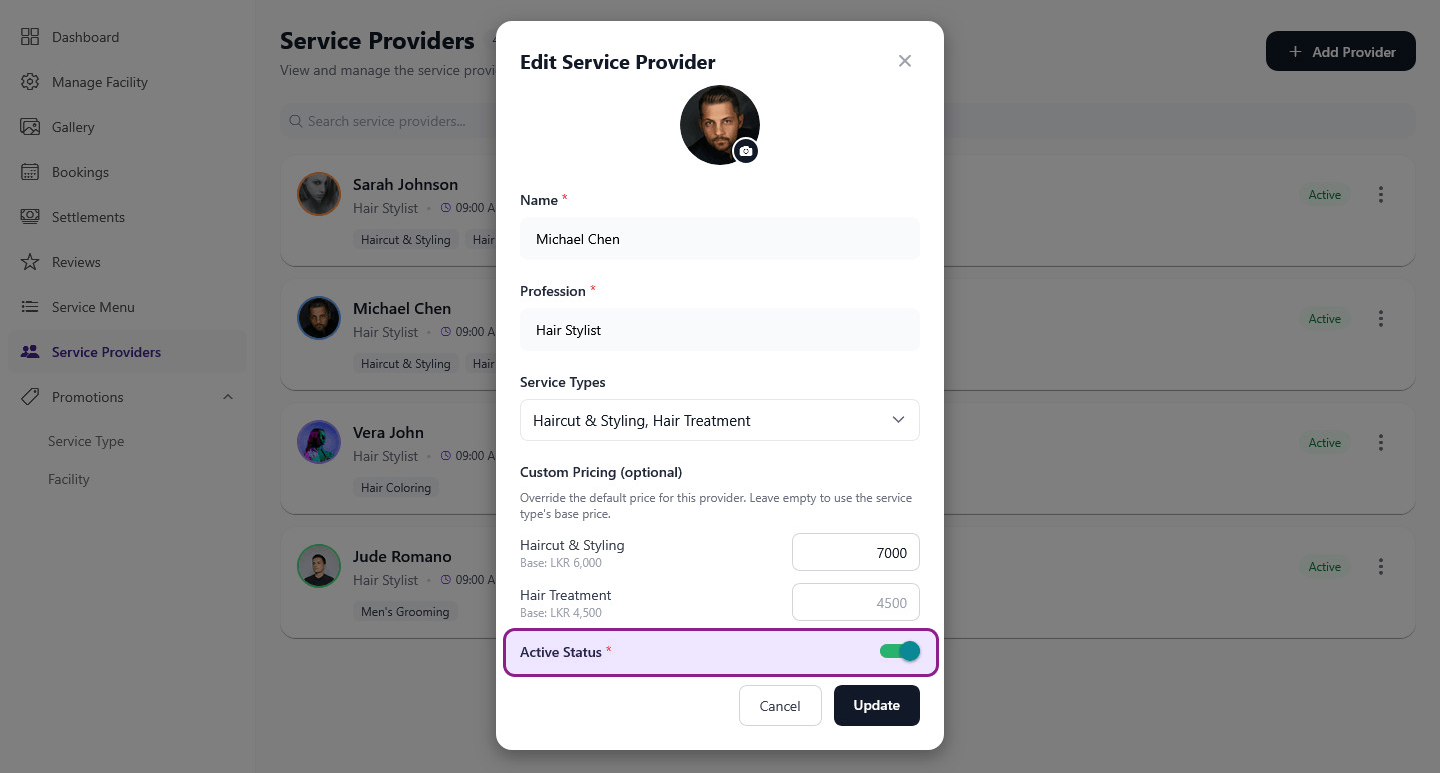
- Update any details — name, profession, image, service assignments, or custom pricing
- Tap Update
Activating / Deactivating a Provider
- Active providers appear in the booking calendar and can be booked by clients
- Inactive providers are hidden from clients but their data is preserved
To change a provider's status:
- Edit the provider
- Toggle the Active status
- Save
tip
Use deactivation instead of deletion when a provider is temporarily unavailable (e.g., on leave). This preserves their booking history.
Deleting a Provider
- Tap the menu on the provider card
- Select Delete
- Confirm the deletion in the dialog
warning
Deleting a provider is permanent. Existing bookings assigned to this provider are not automatically cancelled — manage them first.
Tips
- Profile photos help clients recognize and choose their preferred provider
- Keep service assignments updated — if a provider learns a new skill, add the service to their profile
- Review custom pricing regularly to ensure it matches your current rates