Managing Operating Hours
Set and update when your salon is open for bookings.
Steps
- Select your salon from the salon dropdown in the top navigation bar (if not already selected)
- Click Manage Facility in the sidebar
- Scroll to the Operating Hours section
- For each day of the week:
- Toggle the day as Open or Closed
- Set the opening time
- Set the closing time
- Click Save to apply your changes
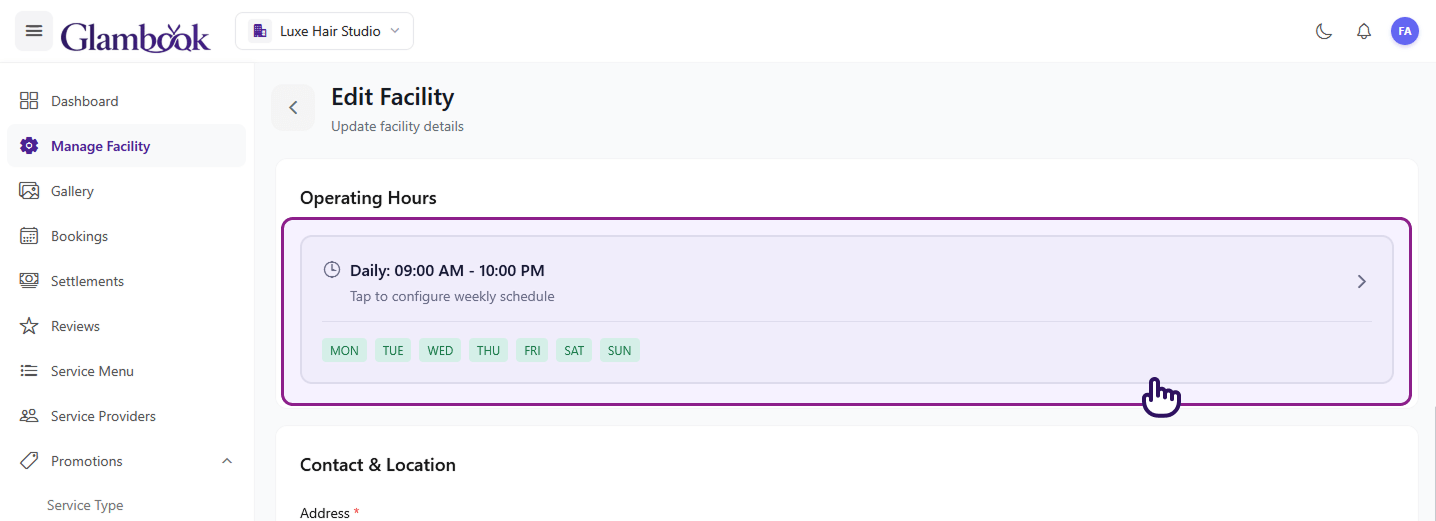
Using Presets
Instead of setting each day manually, you can use quick presets:
| Preset | Hours |
|---|---|
| Standard | 9:00 AM – 6:00 PM |
| Extended | 6:00 AM – 11:00 PM |
| Custom | Set your own times |
Tap a preset to apply it to all open days, then adjust individual days as needed.
Important Notes
- Operating hours affect booking availability — clients can only book time slots within your open hours
- Closed days won't show any available slots for clients
- Changes take effect immediately — if you close a day, any existing bookings for that day are not automatically cancelled (manage them manually)
- Provider shifts must fall within operating hours — a provider can't be scheduled outside your salon's open times
tip
If you have seasonal hours or holiday schedules, update your operating hours in advance so clients see accurate availability.